Unreal Engine Output
Unreal Engine Output sends the mesh wired into it to an Unreal Editor running on the same computer, where it becomes a saved static mesh in the content folder you name. Click Send to Unreal again after a change and the same asset is refreshed, so every copy you placed in a level updates. It needs the Forge Bridge plugin in the Unreal project. The node ends a chain: it has no output pin, and turning on its display flag shows exactly what a send will carry.
Inputs
Section titled “Inputs”The mesh (or imported model) to send to Unreal.
Parameters
Section titled “Parameters”| Parameter | What it does | Default |
|---|---|---|
Content path | The Unreal content folder a new asset is created in. | /Game/Forge |
Asset name | The asset's base name. Blank uses the wired node's name. | Blank |
Unreal Editor | The connection to the Unreal Editor and the Send to Unreal button. | Set in the panel |
Sending a mesh
Section titled “Sending a mesh”- Open your Unreal project with the Forge Bridge plugin enabled. Its Window ▸ Forge tab shows the port it listens on (7041 unless you changed it in Project Settings).
- In Forge, wire the last node of your chain into Unreal Engine Output and select the node.
- The first time, Unreal asks whether Forge may connect. Choose Allow. Unreal remembers the answer for that project.
- When the node says it is connected, click Send to Unreal. The line under the button shows the asset that was written and when, or what the plugin said went wrong.
The asset is created in the Content path folder under the Asset name (Unreal adds its own prefix, such as SM_ for the static mesh). Once it exists you can rename or move it in the Content Browser: later sends still refresh that same asset.
A rigged character (one that went through Auto Rig) is sent as a static mesh, without its skeleton or any clips added with Add Animation, and the node’s badge says the rig and its clips were not sent. To bring the rig into Unreal, write a .glb with Export and import that file.
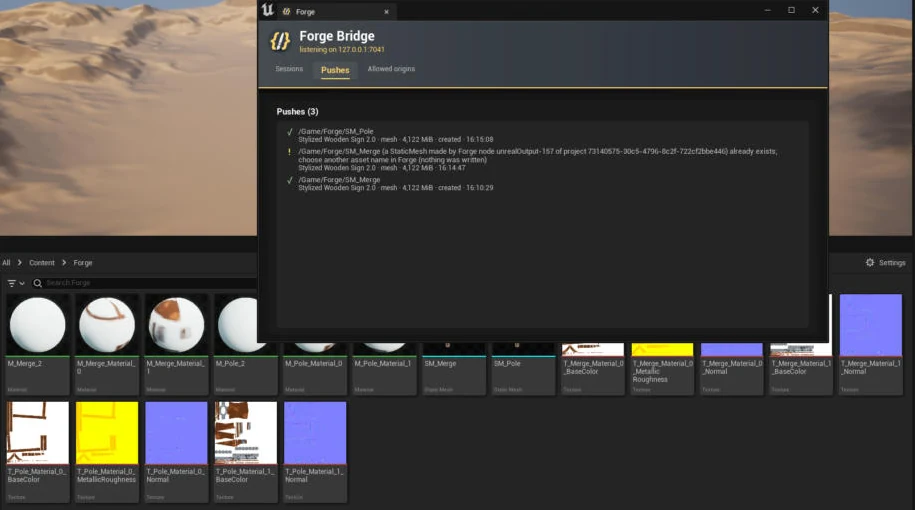
Unreal’s Window ▸ Forge tab lists every send with its result. A name that already belongs to another Forge node is refused and nothing is written.
Getting the plugin
Section titled “Getting the plugin”Forge Bridge is an editor plugin for Unreal Engine 5.1 through 5.8. Unzip the build for your engine into your project’s Plugins folder, enable Forge Bridge in Edit ▸ Plugins, restart the editor, and open Window ▸ Forge. Version 0.2 ships ready-built for UE 5.1 and 5.8. On 5.2 to 5.7 the editor compiles it from source the first time it opens.
What the status line means
Section titled “What the status line means”| It says | What to do |
|---|---|
| Looking for the Unreal Editor | Nothing. Forge is trying the port. |
| Unreal Editor not found at port 7041 | Open the Unreal project and check the plugin is enabled. If the plugin listens on another port, type it into Port. |
| Waiting for Allow in the Unreal Editor | Switch to Unreal and answer its dialog. |
| Denied in Unreal | Someone chose Deny, or removed Forge from the allowed origins in Window ▸ Forge. Select the node again to ask once more. |
| Your browser is asking whether Forge may reach apps on this device | Choose Allow in the browser’s prompt. Chrome asks this once per site. |
| Your browser blocks Forge from reaching apps on this device | Allow “Apps on device” for this site in the browser’s site settings. |
| Connected to project (UE version) | Ready. Send to Unreal is enabled once a mesh is wired in. |
Forge keeps trying to connect while the node is selected, so you can open Unreal after Forge. Both must run on the same computer.
The node also works inside a subnet: dive in, select it, and send. Only you can send. The copilot can add and wire the node and fill in the content path and asset name, but it cannot connect or send.
See also
Section titled “See also”- Export: write a .glb file instead, for any game engine.
- Utility nodes: the other plumbing nodes.